
Typically rename templates are used when renaming, moving or copying files and folders. With the introduction of the Set Using Rename Template statement, you can now use rename templates to generate text. Many tokens have been implemented which may be meaningless when renaming files but increase the capability of text generation.
This action largely serves as a sample usage of the tokens intended to be used with the the Set Using Rename Template statement.
An NFO (info) file is a text file presenting a summary of the metadata in an album. The file displays album metadata at the top and per track information at the bottom. The following is sample NFO content:
ARTIST.....: Keb' Mo'
ALBUM......: The Breakdown
LABEL......: Concord Records
CATALOG....: CRE03539
FORMAT.....: Digital Media
COUNTRY....: [Worldwide]
RELEASED...: 2026-08-21
GENRE......: Blues
STYLE......: Blues
DISCOGS....: https://www.discogs.com/release/38229207-Keb-Mo-The-Breakdown
MUSICBRAINZ: https://www.musicbrainz.org/release/9f0dfc73-30e5-44ce-8e56-0f5a94e2c2db
ENCODING...: Permute [Apple Lossless 44000, 24 bit]
STREAM.....: ALAC
BITRATE....: 2117 kbps
SAMPLERATE.: 44100 Hz
MODE.......: Stereo, 24 bit
TRACKS.....: 10
SIZE.......: 411.40 MB
PLAYTIME...: 38:42

No  Artist - Title                                                           Time
--  ----------------------------------------------------------------------  -----
01  Keb' Mo' - Fussing And Fighting                                         04:14
02  Keb' Mo' - Every Step Of The Way                                        04:35
03  Keb' Mo' - They Don't Make 'Em Like They Used To                        04:43
04  Keb' Mo' - More Yesterdays                                              03:43
05  Keb' Mo' - We Make Love                                                 03:34
06  Keb' Mo' - Walking On Water                                             03:39
07  Keb' Mo' - Hand It Over                                                 03:23
08  Keb' Mo' - Living In The Moment                                         03:37
09  Keb' Mo' - Stitched Up Heart                                            03:18
10  Keb' Mo' - One Day Away                                                 03:55
The content was produced by the Generate an NFO File via Rename Template action. The action is quite simple:
1: Version 1.0 - A sample action to produce an NFO style file using rename templates
2:
3: Set named variable 'results' using rename template 'Sample NFO Top'
4: Set Variable 0 using rename template 'Sample NFO Bottom'
5: Build List with delimiter "\n" in named variable 'bottom' from field Variable 0 (As found) string delimiter "\~"
6: Append "\<bottom>\n" to named variable 'results'
7: Show the contents of named variable 'results' in the Log Viewer (monospace)
Statement 3 is a Set Using Rename Template statement which uses rename template Sample NFO Top to generate everything before the first numbered track line. The results are saved to named variable results.
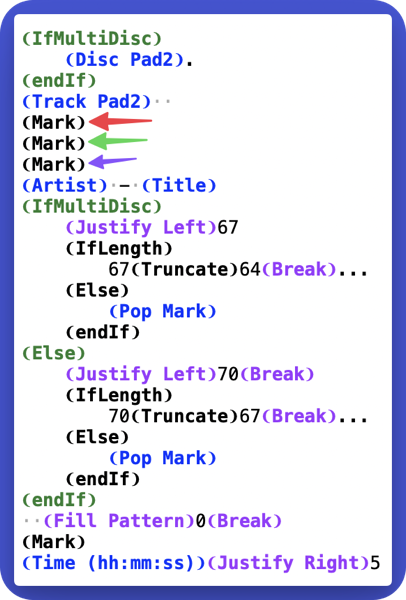
Statement 4 is a Set Using Rename Template statement which uses rename template Sample NFO Bottom to generate the per track rows. The per file results are saved to track variable 0.
Statement 5 builds a list of the per file output in track variable 0. The list is delimited by a newline character and is stored to named variable bottom.
Statement 6 appends the bottom to results (the top) and also appends a trailing newline character. Remember list items are delimited, not terminated.
Statement 7 displays the generated text in the Log Viewer where a file can be saved if you wish.
You can changed the content of the produced text simply by editing the rename templates.
The Sample NFO Top template is quite large so lets go over it a piece at a time:
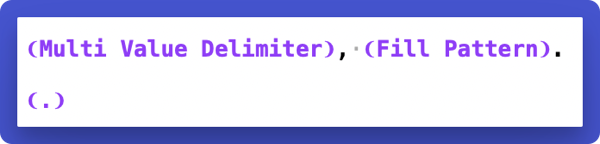
The first line establishes that occurrences of the multi value delimiter should be replaced with a comma. It also sets up the fill pattern as a single period.
The ❨.❩ token is used to provide spacing in the formatted text representing the template. It also acts as a ❨Break❩ token.
The next section constructs the Album text.
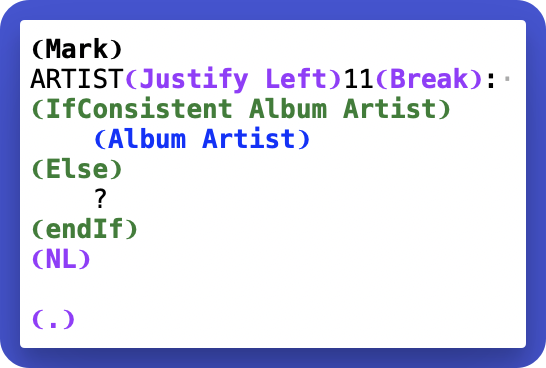
The section does the following:
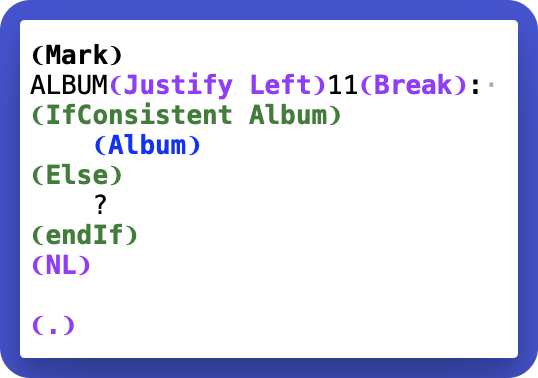
The next section does exactly the same except for the Album field.
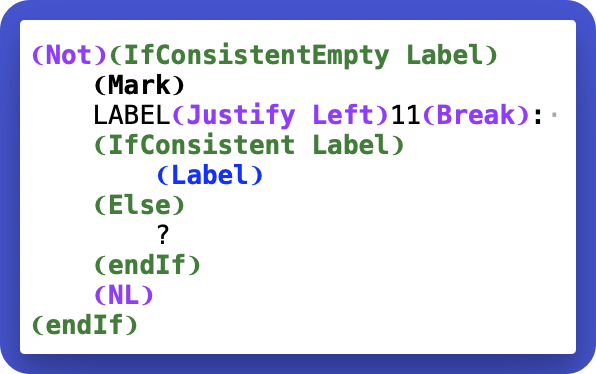
The next section optionally inserts txt which represents the Label.
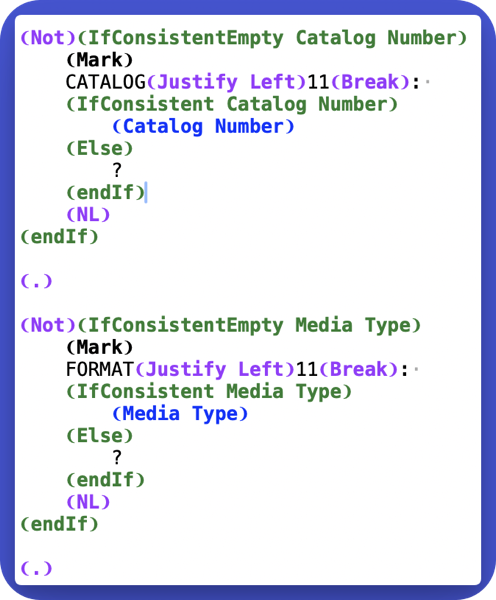
The next two sections handle the Catalog Number and Media Type fields in exactly the same way. ie. they are optional and are only inserted if they are not empty in all files.
The next section optionally inserts a COUNTRY value.
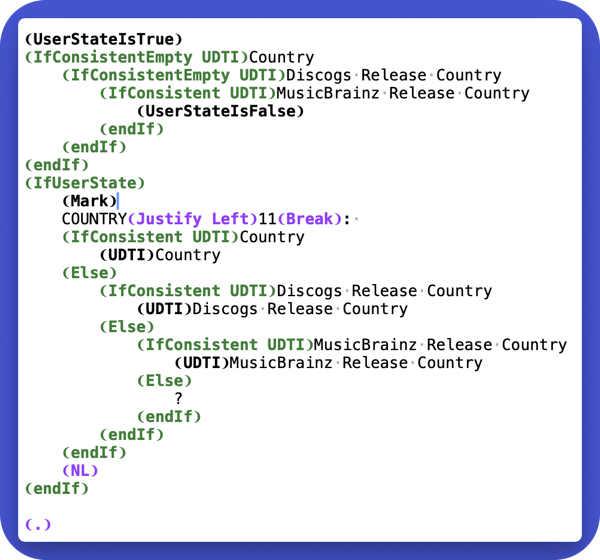
Yate supports three country UDTIs. The generic Country and those inserted by the Discogs and MusicBrainz wizards: Discogs Release Country and MusicBrainz Release Country.
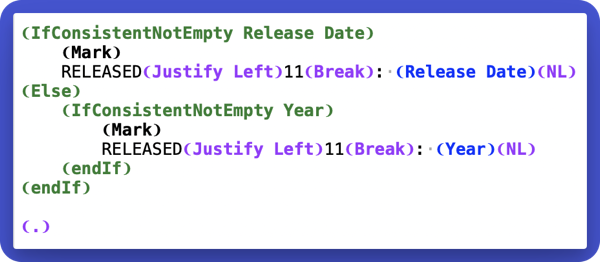
The next section does the same process except that it inserts Release Date or Year. It is done via a different token sequence to illustrate a different technique.
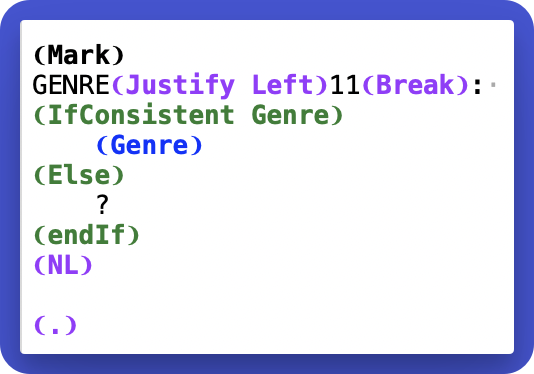
The next section simply inserts a consistent Genre field or ? if it is not. Note that the displayed value for GENRE can be empty.
The next section uses a more complicated technique to conditionally display a STYLE (based on Mood) item. This is done to illustrate the use of different tokens.
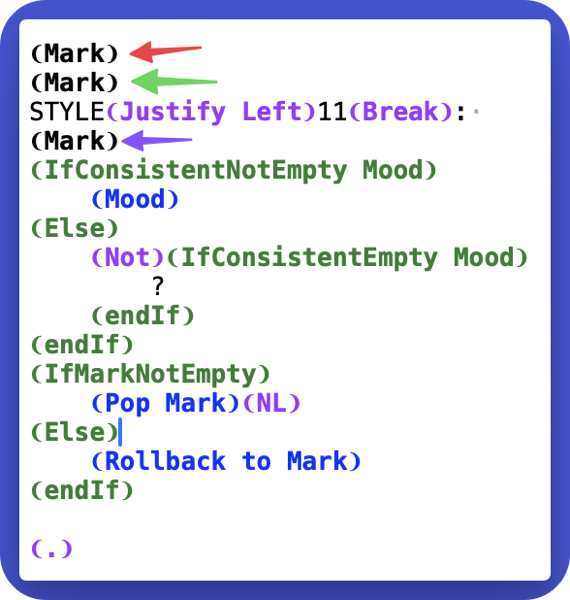
As seen in previous sections, there are far simpler ways of doing the above. The sequence was chosen to show multiple ❨Mark❩ tokens in use and how to manipulate them.
The next two section use sequences already discussed to insert URLs to the release in Discogs and MusicBrainz. The sequences are omitted if they do not exists in all files.
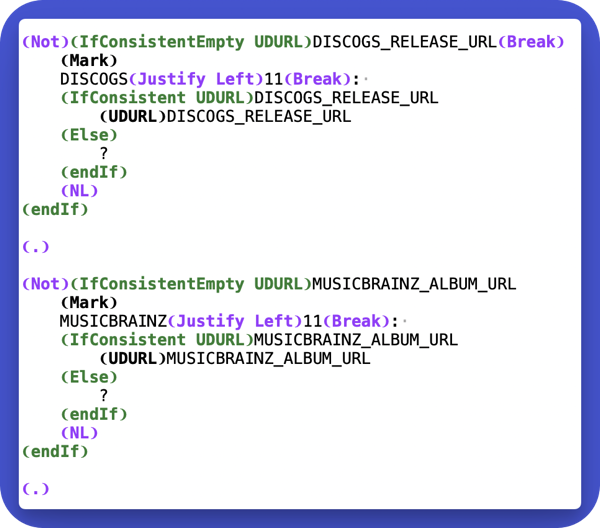
The next section process the Encoded By and Encoder Settings fields.
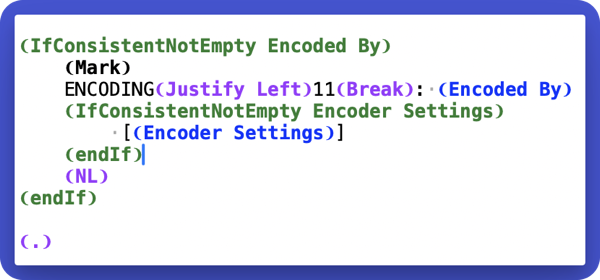
The ENCODING entry is ignored if Encoded By is not consistent or is all empty. If Encoder Settings is consistent and non empty it is appended.
The next three sections insert the Bit Rate, Sample Rate and Channel Mode properties.
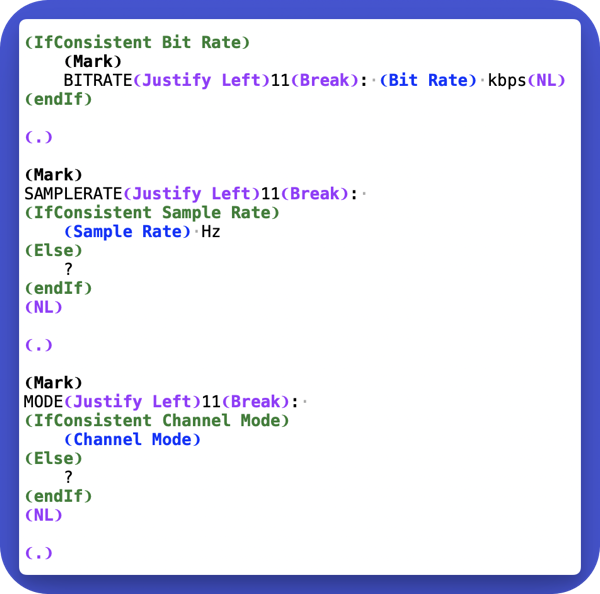
Note that BITRATE is only entered if it is consistent while SAMPLERATE and MODE are always displayed.
The next section inserts some summary information.
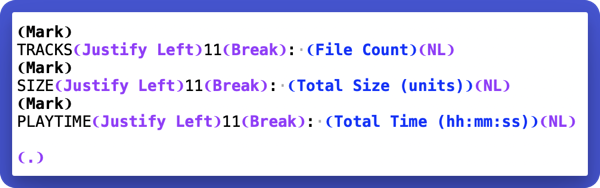
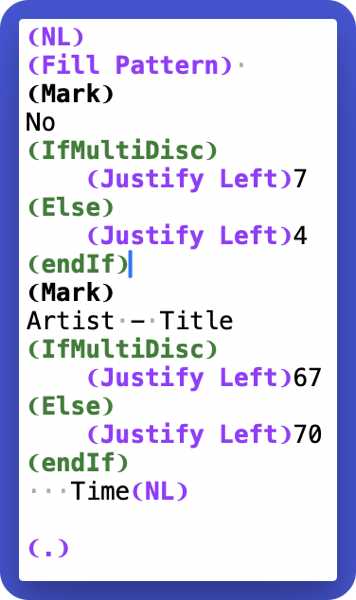
The next section in the top template generates the header for the the per track data.
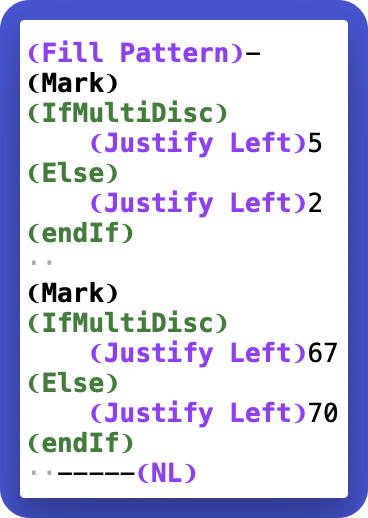
The last section in the top template inserts the underline.
The following screenshot describes the Sample NFO Bottom template. This template is sed to fill track variable 0 in each file based on this template. This is done in statement 4 of the action. Using Yate's parallelism, the single statement sets the appropriate text for each file.
As previous said these two rename templates and the associated action serve as a sample use of the Set Using Rename Template action statement and various rename template tokens.
The action and the referenced rename templates can be downloaded via the Resource Actions Install on the Yate menu or via Install sample rename templates on the Settings - Rename - Settings panel. Using both methods the item to install is named Generate an NFO File via Rename Template.
Content List:
Actions:
Generate an NFO File via Rename Templates
Rename Templates:
Sample NFO Top
Sample NFO Bottom
Requirements:
Yate v10.0
History:
| Date | Version | Information |
|---|---|---|
| 2026-09-15 | v1.0 | First release. |