
Originally this was started as an exercise to test some of the action statement modifications made in Yate v10.2. The actions allow you to create folders containing aliases to folders which can be displayed in the File Browser. The following actions are provided:
The action extracts all folders on the File>Open Recent menu (or associated toolbar item). Symbolic links to the extracted folders are created in:
~/Documents/Yate/Recent Items
Do not place anything else in the folder as it is recreated in its entirety each time the action is run. This is done so that items no longer on the recents menu are removed.
The folder will be displayed in the File Browser.
This action is used to add items to a favourites folder stored at:
~/Documents/Yate/Favourites
When the action is run a popup menu will appear containing Selected File's Folders and Dropped Folders.
When Selected File's Folders is chosen, the containing folder of every selected file will be added to the favourites.
When Dropped Folders is selected a panel is displayed to which you can drop folders you want to add. If you do not want to use the drop panel you can click on the System Panel button to display a standard Mac file selection panel. The View Folders button can be used to display a list of the folders you have already selected. In the displayed panel you can remove selected folders.
When you hit Continue (or Choose in the Mac file selection panel), the Display Favourites action will be called to display the folder.
This action validates the contents of the favourites folder. All links where the destination no longer exists will automatically be removed. Do not place anything else in the folder as any item which is not a valid symbolic link or alias to a folder will be moved to the trash.
The favourites folder will be displayed in the File Browser. To remove a favourite, simply move it to the trash from the File Browser via the context menu.
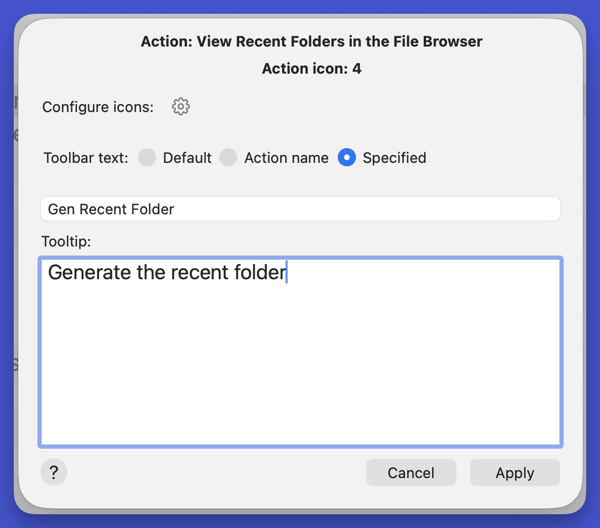
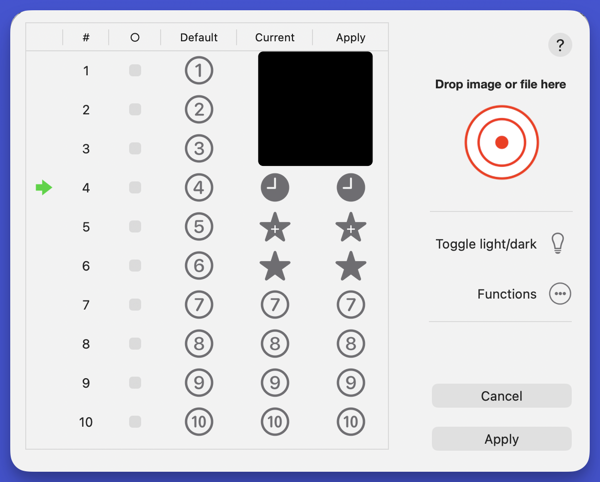
If you're going to use the actions a lot it may be convenient to associate them with action toolbar icons. We've provided icons which you can associate with the toolbar items. The icons can be downloaded via the link at the end of this document.
In case you need a refresher course on how to associate the icons with the action, here it is:
Content List
Actions:
Folder: Recent/Favourites Folders
View Recent Folders in the File Browser
Add Selected Folders to Favourites
Display Favourites
Requirements:
Yate v10.2
History:
| Date | Version | Information |
|---|---|---|
| 2026-11-11 | v1.0 | First release. |